 By
By 
To switch out of the SAVE plan, log in to StudentAid.gov, use the Repayment Calculator to compare the plans you are eligible for, select the plan you want, and click “Apply.” If you choose an income-driven repayment plan such as RAP or IBR, you will be taken to the online IDR application. The Department of Education says the process takes about 10 minutes, and allowing access to your federal tax information can make it faster.
Do not wait for a universal national deadline. Your loan servicer is supposed to give you a specific 90-day window to choose a new plan. If you do nothing by the deadline in your notice, the Department says you may be automatically moved into the Standard Repayment Plan or the new Tiered Standard Plan.
Key takeaways
- SAVE is already over. A federal court order ended the SAVE plan on March 10, 2026. July 1 was the launch date for RAP and Tiered Standard, not the date SAVE ended.
- Check the deadline in your servicer notice. SAVE borrowers are being given at least 90 days to choose another repayment plan.
- Start at StudentAid.gov. The Repayment Calculator shows the plans your loans qualify for and lets you continue to the application.
- RAP is not automatically the cheapest choice. Payments are based on AGI and dependents, and there is no maximum payment cap under RAP.
- IBR can still be available for eligible loans issued before July 1, 2026. Its payment and forgiveness rules differ from RAP.
- If you are pursuing PSLF, pay special attention to the plan you choose. RAP can qualify for PSLF when other requirements are met, while Tiered Standard payments do not qualify.
What happened to the SAVE plan?
The SAVE plan did not simply expire on July 1, 2026.
A federal court order ended SAVE on March 10, 2026. The Department of Education subsequently told borrowers enrolled in SAVE that they would need to move to another legal repayment plan.
July 1, 2026 matters for a different reason. That is when two new repayment options became available:
- Repayment Assistance Plan, or RAP
- Tiered Standard Repayment Plan
Servicers also began issuing notices telling affected SAVE borrowers when they must choose a replacement plan. The Department says borrowers will receive at least 90 days, with the exact deadline determined by the notice from their servicer.
So the practical rule is simple:
Find your servicer’s notice and use the deadline printed there.
What you need before you switch
You do not need a long stack of paperwork, but have these things ready:
- Your StudentAid.gov login and FSA ID
- Your SAVE transition notice and exact deadline
- Your current federal loan information
- Your latest income information
- Information about dependents
- Income documentation if you do not authorize access to federal tax information
For an IDR application, borrowers can consent to allow the Department of Education to obtain federal tax information directly from the IRS. That generally removes the need to manually upload income information and can speed up processing.
How to switch out of SAVE step by step
Step 1: Find your 90-day deadline
Before comparing plans, check the notice from your loan servicer.
The Department says SAVE borrowers will receive a specific deadline and at least 90 days to select another repayment plan. Do not assume your deadline is the same as another borrower’s.
If you cannot find the notice, log in to your servicer account and check your messages or contact the servicer directly.
Step 2: Log in to StudentAid.gov
Sign in to your StudentAid.gov account.
From your Dashboard, you can review your federal loans, current balance, loan type, interest rate, and repayment information. Federal Student Aid notes that repayment-plan information may take several days to update after a change is processed.
Knowing your loan types matters because eligibility for RAP, IBR, PAYE, ICR, and fixed repayment plans is not identical.
Step 3: Open the Repayment Calculator
Use Federal Student Aid’s Repayment Calculator rather than picking a plan based only on a headline payment percentage.
The calculator can estimate:
- Monthly payments
- Repayment period
- Total amount repaid
- Potential IDR discharge
- Potential PSLF discharge
- Which repayment plans your loans qualify for
You can also see how consolidation could change your available plans.
This is the step I would spend the most time on.
A plan with the lowest payment today is not necessarily the plan with the lowest total cost.
Step 4: Compare RAP, IBR, and your fixed-payment options
Most SAVE borrowers should pay particular attention to RAP, IBR, and the fixed repayment plans they qualify for, but your exact choices depend on your loan types and disbursement dates.
Eligible borrowers with loans issued before July 1, 2026 may also still have access to PAYE or ICR for now. Both plans are scheduled to be retired no later than July 1, 2028, so switching into a plan that is already scheduled to disappear can mean another plan change later.
Once you find a plan that fits your situation, select Apply in the Repayment Calculator. If you choose an IDR plan, StudentAid.gov will take you to the IDR application.
Step 5: Authorize tax information if appropriate
For an income-driven repayment plan, you can consent to allow the Department to obtain your federal tax information.
The Department says this makes the application faster because you generally will not need to manually upload income information.
If your most recent tax return does not accurately reflect your current situation, IDR rules also allow borrowers in certain situations to provide alternative documentation of income.
Step 6: Review and submit
Before submitting, check:
- The repayment plan selected
- Income information
- Dependents
- Estimated payment
- Loan eligibility
- Whether the plan works with PSLF, if relevant
Save the application confirmation after submitting it.
Step 7: Confirm the new payment with your servicer
Your loan servicer determines and communicates your final monthly payment after processing the application.
Federal Student Aid notes that your StudentAid.gov Dashboard can take 7 to 14 days to reflect changes made with your servicer.
Check both StudentAid.gov and your servicer account after the switch so you know:
- Which plan you entered
- Your monthly payment
- Your first payment due date
- Whether auto pay is active
- Whether your PSLF information is correct, if applicable
RAP vs IBR: Which should you choose after SAVE?
There is no universal winner.
The better plan depends on your income, debt balance, dependents, loan history, and whether you are pursuing forgiveness.
RAP may make sense if you want stronger interest protection
RAP payments are based on your adjusted gross income.
The base calculation ranges from 1% to 10% of AGI, depending on income, with a $50 monthly reduction for each dependent claimed on your federal tax return. The monthly payment generally cannot be lower than $10.
RAP also has two unusual protections.
If your required on-time payment does not cover all of the month’s interest, the remaining unpaid interest is waived. If your full on-time payment reduces principal by less than $50, the government can make an additional principal reduction so that principal falls by at least the amount of your payment, up to a $50 match.
But there is a trade-off.
RAP does not cap your payment at what you would pay under the 10-year Standard Plan. Federal Student Aid warns that some borrowers can therefore owe more each month under RAP than under Standard repayment.
RAP’s regular IDR discharge period is also long: 360 qualifying monthly payments, or 30 years.
You can estimate your payment in our Repayment Assistance Plan (RAP) guide.
IBR may work better for some existing borrowers
IBR calculates payments using discretionary income rather than the RAP formula.
Depending on when you became a borrower, payments are generally 10% or 15% of discretionary income, and your payment is capped at the amount you would pay under the 10-year Standard Repayment Plan.
The normal IBR repayment period is:
- 20 years for qualifying newer borrowers
- 25 years for other borrowers
That can be shorter than RAP’s 30-year forgiveness timeline.
However, that does not automatically make IBR cheaper. Your monthly payment can differ substantially depending on income and household circumstances.
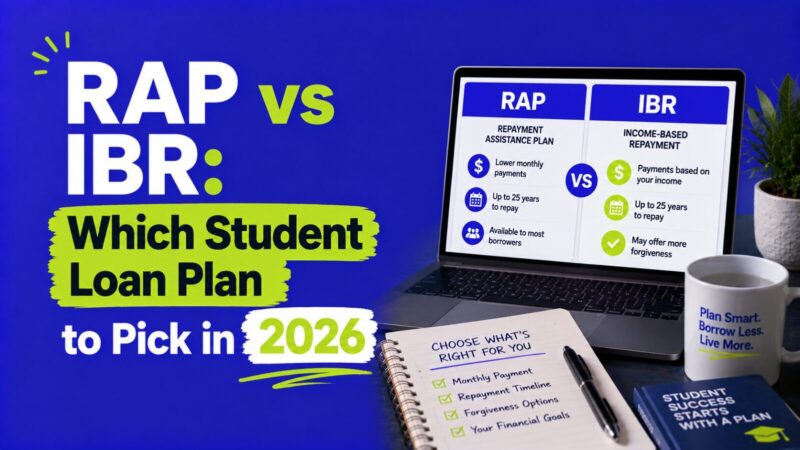
Use our RAP vs IBR comparison together with StudentAid.gov’s Repayment Calculator before choosing.
Tiered Standard may work if you want fixed payments
The Tiered Standard Plan does not base your monthly payment on income.
Instead, it offers a fixed repayment period based on your total student loan balance. Depending on the amount owed, the term can be 10, 15, 20, or 25 years.
That makes payments predictable, but stretching repayment over more years can increase the total interest you pay.
There is another major drawback for public-service borrowers:
Tiered Standard payments do not qualify for PSLF.
See our Tiered Standard Plan explained guide if you are considering the fixed-payment route.
What if you are pursuing PSLF?
Do not choose your replacement plan based only on the lowest monthly payment shown.
RAP has been added as a qualifying repayment plan for PSLF, provided you make the required on-time payments and meet the other PSLF requirements.
IBR can also be used while pursuing PSLF for eligible borrowers.
Tiered Standard, however, does not qualify for PSLF.
That makes your SAVE transition especially important if you work for a qualifying public-service employer.
If PSLF is your goal, turn on the PSLF option in Federal Student Aid’s Repayment Calculator so the estimates reflect potential PSLF discharge rather than looking only at ordinary repayment.
What happens if you miss the SAVE deadline?
If you do not select a new repayment plan within the deadline communicated by your servicer, the Department says you can be automatically enrolled in either the Standard Repayment Plan or Tiered Standard Plan.
That does not mean your loans disappear or that you are automatically in default.
It does mean you lose the opportunity to choose the plan before the automatic placement happens, and your monthly payment may be very different from what you would pay under RAP or IBR.
For PSLF borrowers, automatic placement into Tiered Standard is especially important because payments under that plan do not qualify for PSLF.
You can generally request another eligible repayment plan afterward, but dealing with the switch before the deadline is simpler.
See what happens if you do nothing after the SAVE notice for a deeper explanation.
One thing to check before switching
Look at when your loans were disbursed.
Under the new rules, borrowers whose eligible loans were issued before July 1, 2026 can have access to legacy plans such as IBR and, temporarily, PAYE or ICR.
If you receive a new loan disbursed on or after July 1, 2026, your choices become much narrower. For those borrowers, RAP is generally the available IDR option, while Tiered Standard is the main fixed-payment alternative.
This is one reason two borrowers leaving SAVE can see different options when they open the Repayment Calculator.
FAQ
How do I switch from SAVE to another repayment plan?
Log in to StudentAid.gov, open the Repayment Calculator, compare the plans your loans qualify for, choose one, and select Apply. If you select an IDR plan such as RAP or IBR, you will continue to the online IDR application.
How long do I have to leave SAVE?
There is no single deadline for every SAVE borrower. The Department says affected borrowers receive at least 90 days, and your servicer will tell you the specific deadline that applies to your account.
How long does the repayment plan application take?
The Department of Education says the application takes approximately 10 minutes. Allowing access to federal tax information can make the IDR process faster because you generally do not need to manually upload income documentation.
Is RAP better than IBR?
Not for everyone. RAP has strong unpaid-interest and principal-reduction protections, but it uses up to 10% of AGI, has no Standard Plan payment cap, and has a 30-year IDR forgiveness period. IBR uses discretionary income, caps payments at the 10-year Standard amount, and generally has a 20- or 25-year repayment period. Compare your actual estimates before choosing.
Will switching plans reset my PSLF count?
Changing repayment plans does not require your PSLF qualifying payments to start over. PSLF’s 120 qualifying payments do not need to be consecutive. However, future payments must continue meeting PSLF requirements, including being made under a qualifying repayment plan.
Rules for ordinary IDR discharge credit are more plan-specific, so check your individual repayment history and projected discharge date before switching solely for forgiveness.
Can I change repayment plans again later?
Generally, yes, as long as you remain eligible for the plan you want. However, borrowers who receive Direct Loans on or after July 1, 2026 have more limited choices and generally can move only between RAP and Tiered Standard for those loans.
Bottom line
If you are still listed in SAVE, do not wait for the system to choose your next repayment plan for you.
Find your servicer’s 90-day deadline, log in to StudentAid.gov, use the Repayment Calculator, compare your actual payment and forgiveness estimates, and submit your application before that deadline.
RAP may be attractive if its interest protections and income-based payment work well for your finances. IBR may be better for some borrowers who qualify for its payment cap or shorter forgiveness timeline. Tiered Standard provides predictable fixed payments but does not qualify for PSLF.
The important part is to compare your own loan history, monthly payment, total repayment cost, and forgiveness goals instead of choosing based on the plan name alone.
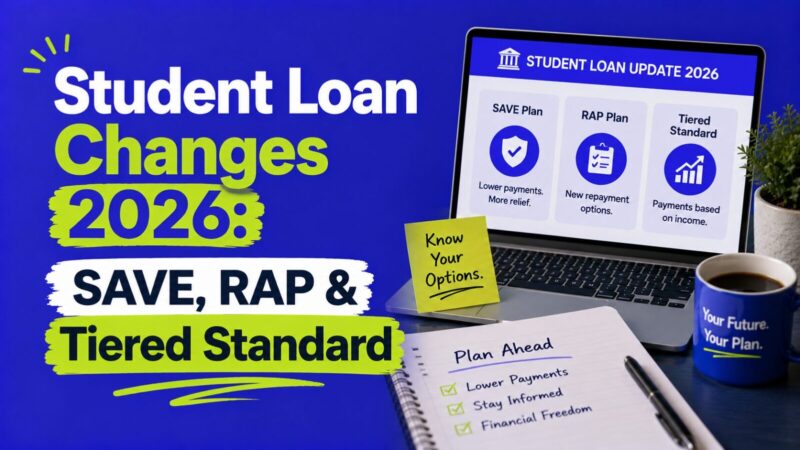
For a broader look at what changed this year, see our student loan changes in 2026 hub.
This guide is for general educational purposes and is not individualized financial, legal, or tax advice. Federal student loan rules, repayment-plan eligibility, and deadlines can change. Check StudentAid.gov and the notice from your loan servicer before making a repayment decision.